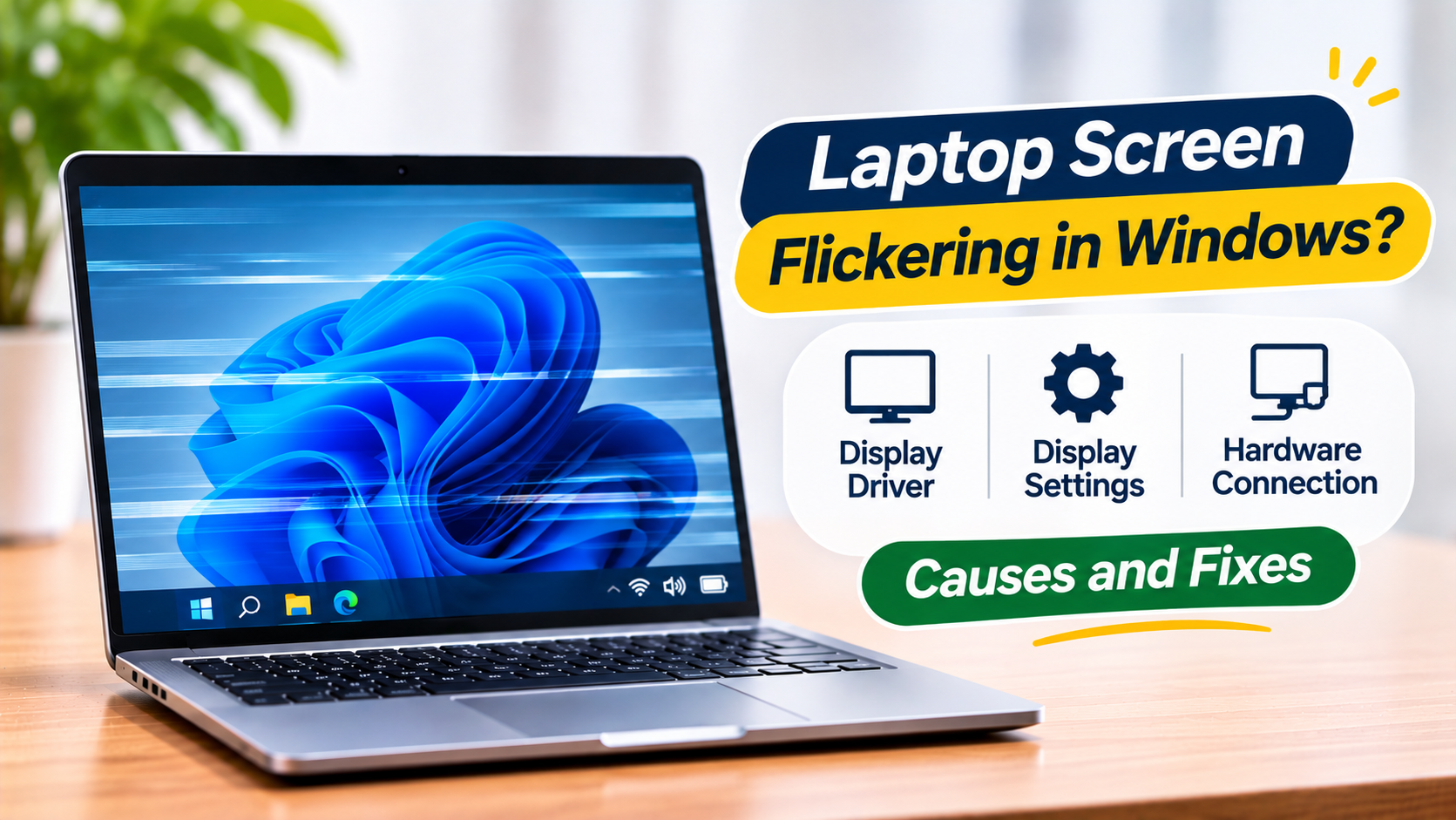
Understanding Laptop Screen Flickering
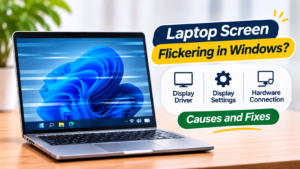
Laptop screen flickering is a common issue that many users encounter. It can be distracting and may hinder your productivity. Understanding the causes behind this problem is the first step toward finding a laptop screen flickering windows fix.
Common Causes of Screen Flickering
There are several reasons why your laptop screen may flicker. Here are some of the most common causes:
- Outdated or Corrupted Drivers: Graphics drivers that are outdated or corrupted can lead to display issues.
- Display Settings: Incorrect display settings, such as refresh rate, can cause flickering.
- Hardware Issues: Loose connections or failing hardware components can also result in a flickering screen.
- Software Conflicts: Certain applications or updates may conflict with your display settings.
Step-by-Step Fixes for Screen Flickering
If you’re experiencing screen flickering, follow these steps to troubleshoot and fix the issue:
1. Update Graphics Drivers
Updating your graphics drivers is one of the first things you should try. Here’s how:
- Press the Windows key + X and select Device Manager.
- Expand the Display adapters section.
- Right-click on your graphics card and select Update driver.
- Choose Search automatically for updated driver software.
Follow the prompts to complete the update. Restart your laptop to see if the flickering persists.
2. Adjust Display Settings
Sometimes, adjusting your display settings can resolve flickering issues. Here’s how to check and modify your settings:
- Right-click on the desktop and select Display settings.
- Scroll down and click on Advanced display settings.
- Check the Refresh rate and ensure it matches your monitor’s specifications.
If the refresh rate is set incorrectly, change it to the recommended value and see if this resolves the flickering.
3. Disable Hardware Acceleration
Hardware acceleration can sometimes cause conflicts leading to screen flickering. To disable it:
- Open the application where you notice flickering (like a web browser).
- Go to the settings menu and look for Advanced settings.
- Find the option for Hardware acceleration and toggle it off.
Restart the application and check if the flickering continues.
4. Check for Software Conflicts
If you recently installed new software, it may be causing the flickering. To troubleshoot:
- Uninstall any recently added applications one by one.
- After each uninstallation, restart your laptop to check for flickering.
Identifying the conflicting software can help resolve the issue.
5. Run Windows Troubleshooter
Windows has a built-in troubleshooter that can help identify and fix display issues:
- Go to Settings > Update & Security > Troubleshoot.
- Select Additional troubleshooters.
- Click on Hardware and Devices and run the troubleshooter.
Follow the prompts to complete the troubleshooting process.
6. Inspect Hardware Connections
If none of the above steps work, it may be a hardware issue. Check the following:
- Ensure the display cable is securely connected to the motherboard.
- Inspect for any visible damage to the screen or connectors.
If you’re not comfortable checking hardware connections, consider seeking professional help.
When to Seek Professional Help
If you’ve tried all the above steps and the screen continues to flicker, it may be time to consult a professional. Issues like a failing graphics card or a damaged screen require expert diagnosis and repair.
Frequently Asked Questions
What causes laptop screen flickering in Windows?
Laptop screen flickering can be caused by outdated drivers, hardware issues, or software conflicts.
How can I fix laptop screen flickering?
You can fix flickering by updating drivers, checking display settings, and running diagnostics.
Is a flickering screen a serious problem?
While it can be annoying, a flickering screen may indicate underlying issues that need attention.
When should I seek professional help for screen flickering?
If basic fixes don’t work, it’s best to consult a professional for a thorough diagnosis.
Conclusion
Laptop screen flickering can be frustrating, but with the right troubleshooting steps, you can often resolve the issue yourself. If you find that the flickering persists after trying these fixes, it’s advisable to seek assistance from a professional laptop repair service. NSS Laptop Service Center provides expert repair services in Delhi, Noida, Gurgaon, and Faridabad. For a free diagnosis, feel free to contact us today!