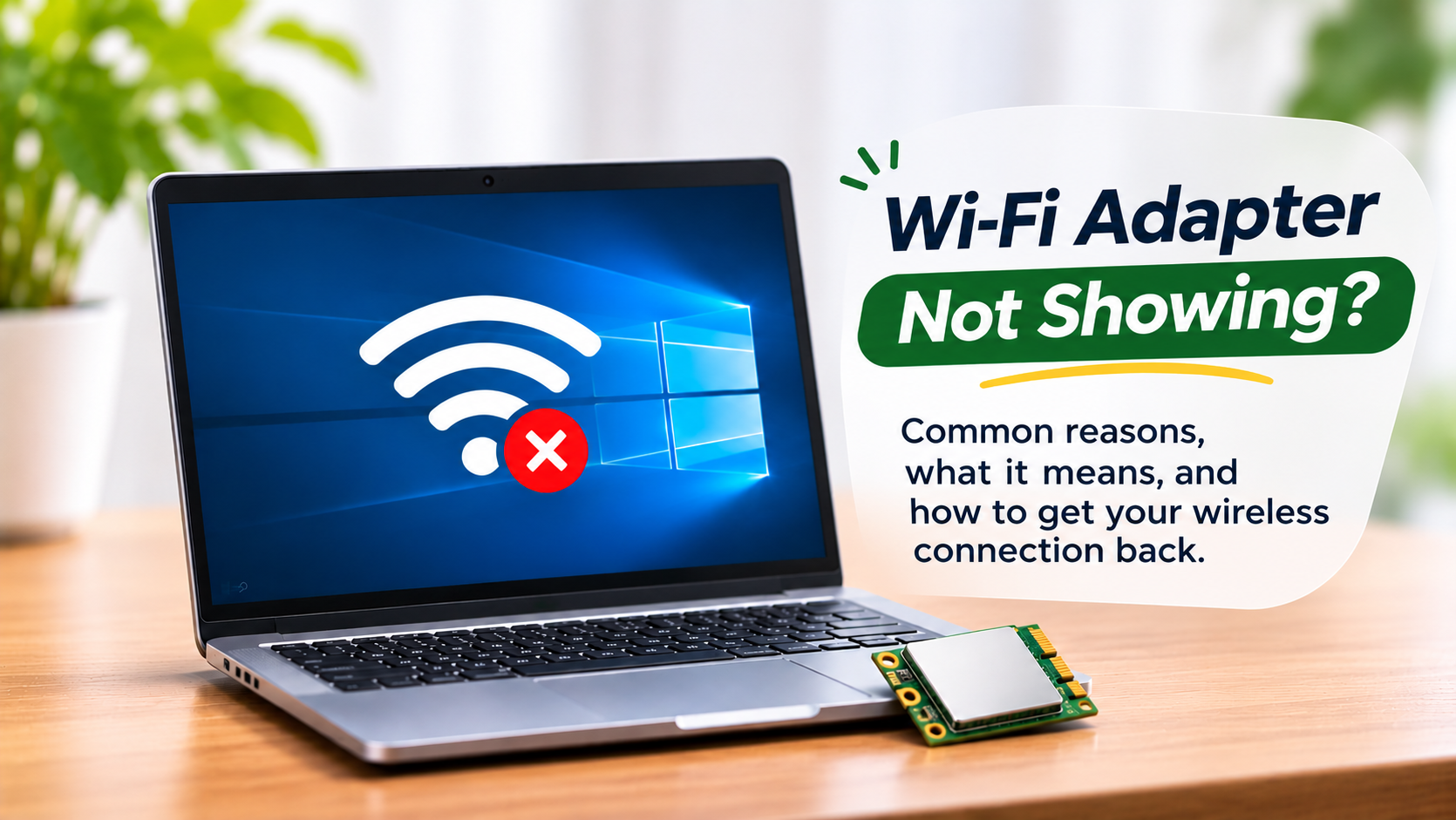
Understanding the Windows WiFi Adapter Not Detected Issue
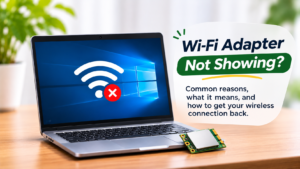
If your Windows device is not detecting the WiFi adapter, it can be frustrating, especially if you rely on internet connectivity for work or leisure. This issue can arise due to various reasons, including driver problems, hardware malfunctions, or configuration errors. In this guide, we will walk you through practical steps to troubleshoot and fix the windows wifi adapter not detected issue.
Step 1: Check Hardware Connections
Before diving into software solutions, ensure that your hardware is functioning correctly. Here’s what you can do:
- Inspect the WiFi Switch: Some laptops have a physical switch to enable or disable the WiFi adapter. Make sure it is turned on.
- Check for External Devices: If you are using an external USB WiFi adapter, ensure it is properly connected. Try plugging it into a different USB port.
Step 2: Restart Your Computer
Sometimes, a simple restart can resolve connectivity issues. Restart your laptop and check if the WiFi adapter is detected after rebooting.
Step 3: Update WiFi Adapter Drivers
Outdated or corrupted drivers can lead to detection issues. Follow these steps to update your WiFi adapter drivers:
- Open Device Manager: Right-click on the Start button and select Device Manager.
- Locate Network Adapters: Expand the Network adapters section.
- Update Driver: Right-click on your WiFi adapter and select Update driver. Choose Search automatically for updated driver software.
- Follow Prompts: If an update is found, follow the prompts to install it.
Step 4: Uninstall and Reinstall the WiFi Adapter
If updating the driver doesn’t work, you can uninstall and then reinstall the WiFi adapter:
- Open Device Manager: As before, right-click on the Start button and select Device Manager.
- Uninstall Device: Right-click on your WiFi adapter and select Uninstall device. Confirm any prompts.
- Restart Your Computer: Windows will automatically reinstall the driver upon reboot.
Step 5: Check Network Settings
Incorrect network settings can also prevent your WiFi adapter from being detected. Here’s how to check:
- Open Network & Internet Settings: Right-click on the WiFi icon in the system tray and select Open Network & Internet settings.
- Network Reset: Scroll down and click on Network reset. This will remove and reinstall all your network adapters.
- Follow the Prompts: Confirm the reset and restart your computer.
Step 6: Run the Network Troubleshooter
Windows has a built-in troubleshooter that can help identify and fix network issues:
- Open Settings: Press Windows + I to open Settings.
- Go to Update & Security: Click on Troubleshoot on the left sidebar.
- Run the Troubleshooter: Click on Additional troubleshooters and select Internet Connections. Follow the prompts to run the troubleshooter.
Step 7: Check for Windows Updates
Keeping your Windows operating system updated is essential for optimal performance:
- Open Settings: Press Windows + I.
- Go to Update & Security: Click on Windows Update.
- Check for Updates: Click on Check for updates and install any available updates.
Step 8: BIOS Settings Check
In some cases, the WiFi adapter may be disabled in the BIOS settings:
- Access BIOS: Restart your laptop and press the appropriate key (often F2, Del, or Esc) to enter BIOS setup.
- Locate Wireless Settings: Find the wireless settings in the BIOS menu and ensure the WiFi adapter is enabled.
- Save Changes: Save any changes and exit BIOS.
Step 9: Consider Hardware Issues
If none of the above steps work, there may be a hardware issue with your WiFi adapter. This could be due to a faulty adapter or a problem with the motherboard. In such cases, it’s advisable to consult a professional.
Frequently Asked Questions
What causes Windows not to detect the WiFi adapter?
Common causes include outdated drivers, hardware issues, or incorrect settings in Windows.
How can I update my WiFi adapter drivers?
You can update drivers through Device Manager or by downloading from the manufacturer’s website.
What if my WiFi adapter is disabled?
Check Device Manager to ensure the WiFi adapter is enabled. You can right-click and select ‘Enable’ if it’s disabled.
When should I seek professional help?
If the issue persists after troubleshooting, it may be a hardware problem that requires a professional repair.
Conclusion
Dealing with a windows wifi adapter not detected issue can be challenging, but with the steps outlined above, you should be able to identify and fix the problem. If you continue to experience difficulties, consider seeking assistance from a professional laptop repair service. NSS Laptop Service Center offers reliable support in Delhi, Noida, Gurgaon, and Faridabad. For a free diagnosis, feel free to contact us.