4 Beeps in Dell Laptop – Meaning, Causes, and Solutions
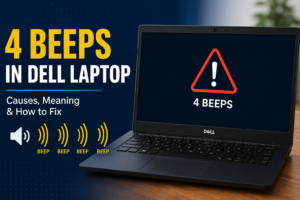
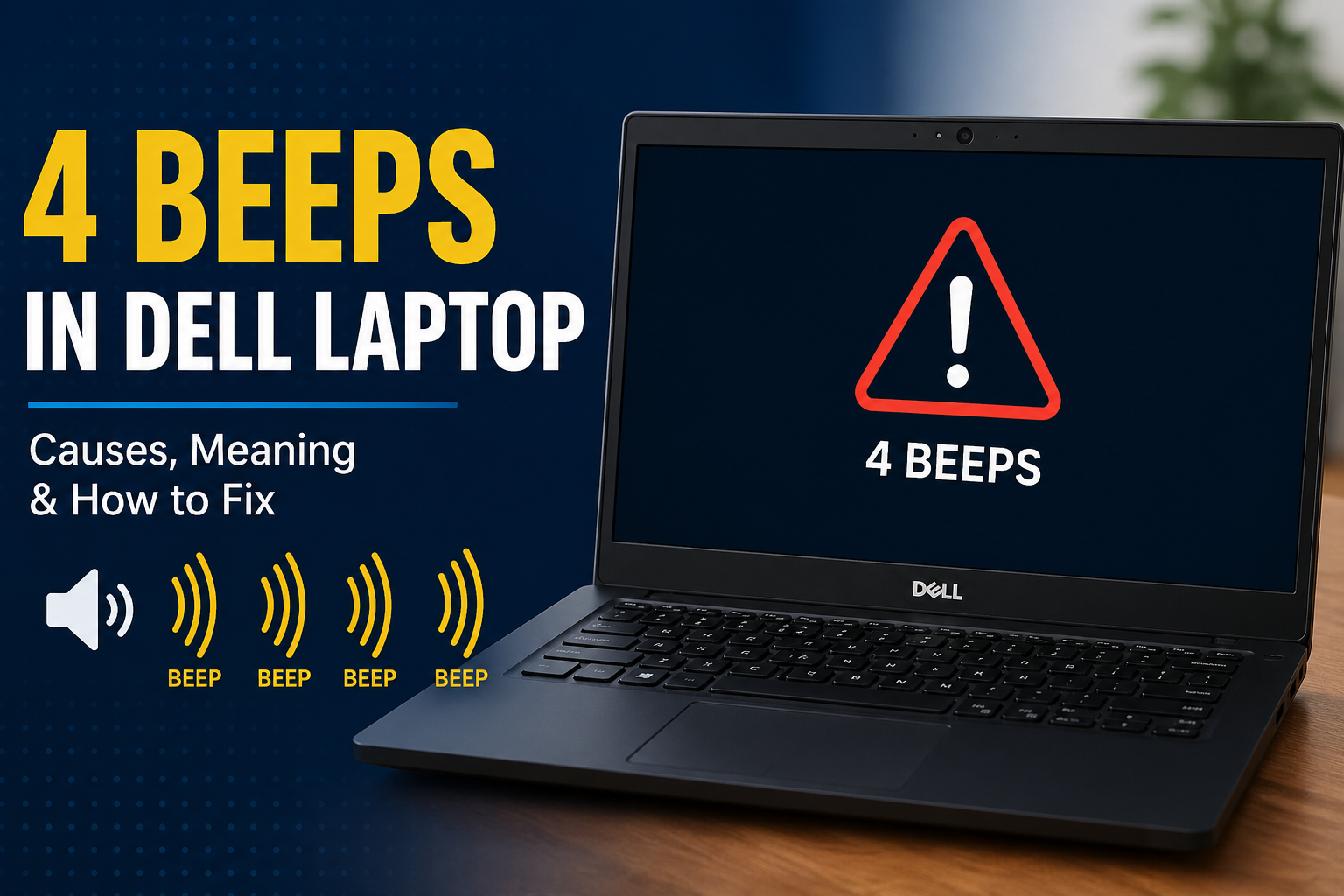
You tried to turn on your Dell laptop as usual, but instead of seeing the display, you heard four beeps. This can be worrying, but there’s no need to panic. These beep sounds are diagnostic beep codes, used by laptops to indicate hardware-related issues when the system fails to boot properly.
Once you understand what the beep code means, diagnosing and fixing the problem becomes much easier—and in many cases, it can be resolved without replacing the entire laptop.
Why Do Dell Laptops Produce Beep Codes?
Modern laptops and computers are designed to display error messages on the screen when something goes wrong. However, when the system cannot access the display due to a hardware failure, it communicates through beep codes instead.
Each beep pattern has a specific meaning.
For example:
- Four beeps indicate a different issue than
- Three beeps or
- One long beep
So it’s important to listen carefully to the number and pattern of beeps before proceeding.
Tip: Restart your laptop once or twice to confirm the beep pattern. Rebooting will not damage your system and helps ensure you identify the correct error.
Meaning of Beep Codes According to BIOS Brand
Different BIOS manufacturers use different beep code patterns. Identifying your BIOS brand helps you understand the exact issue.
1. AMI (American Megatrends)
- Four short beeps: Motherboard timer or clock IC failure
- One long + three short beeps: RAM failure or memory-related issue
2. AST
- Four short beeps: Keyboard malfunction
- One long + three short beeps: Video adapter memory failure
3. Dell BIOS
- Four beeps: RAM failure or faulty memory module
4. Mylex
- Four beeps: Faulty controller IC on the motherboard
How to Fix the 4 Beeps Issue in Dell Laptop
Some causes behind beep codes are minor and can be resolved easily, while others may require professional assistance.
Basic Fixes to Try First
- If the beep code points to a keyboard issue, ensure it is properly connected
- For display or video issues, reseat the video card or check internal connectors
- If the system points to RAM problems, remove and reseat the RAM module
If your laptop turns on but the screen remains blank, you may want to check the Dell laptop screen replacement cost to understand repair expenses before visiting a service center.
Troubleshooting Motherboard-Related Issues
Motherboard problems are more complex and require systematic troubleshooting:
- Remove any recently installed hardware and restart
- Disconnect all external devices (USB drives, CDs, external hard disks)
- Check all internal power and data cables for loose connections
- Plug the laptop directly into a wall socket (avoid UPS or power strips)
Check for Overheating
- Ensure all cooling fans, especially the CPU fan, are working properly
- Overheating or fan failure can prevent the system from booting
Advanced Checks
- Disconnect IDE, SATA, or SSD cables and reconnect one by one
- Ensure the BIOS chip is properly seated (thermal expansion can loosen it)
- Replace old thermal paste between the CPU and heat sink
If the issue still persists, professional diagnosis is strongly recommended.
Last-Resort Hardware Replacement Order
If no solution works, replacement may be required in the following order:
- Motherboard
- RAM
- CPU
- Power Supply
Always consult a technician before replacing major components.
Conclusion
The four beeps sound in Dell laptops is a clear warning sign of a hardware issue—most commonly related to RAM, motherboard, or internal components. By identifying the beep code correctly and following structured troubleshooting steps, many users can resolve the issue without major expense.
If the problem involves display failure, memory errors, or motherboard damage, understanding repair options and costs—such as the Dell laptop screen replacement cost & Dell laptop hinges replacement cost – helps you make an informed decision before proceeding.